Create Custom Forms and Sync to Google Forms
Last updated: June 18, 2026
Mutiny lets you build custom forms that feed directly into your Google Forms submissions. The Creative Agent handles the connection, mapping your custom form fields to your Google Form fields so responses show up automatically in Google.
Setting Up Your Google Form
Before working in the editor, you need to grab a pre-filled link from your Google Form. Start by making sure your Google Form is published.
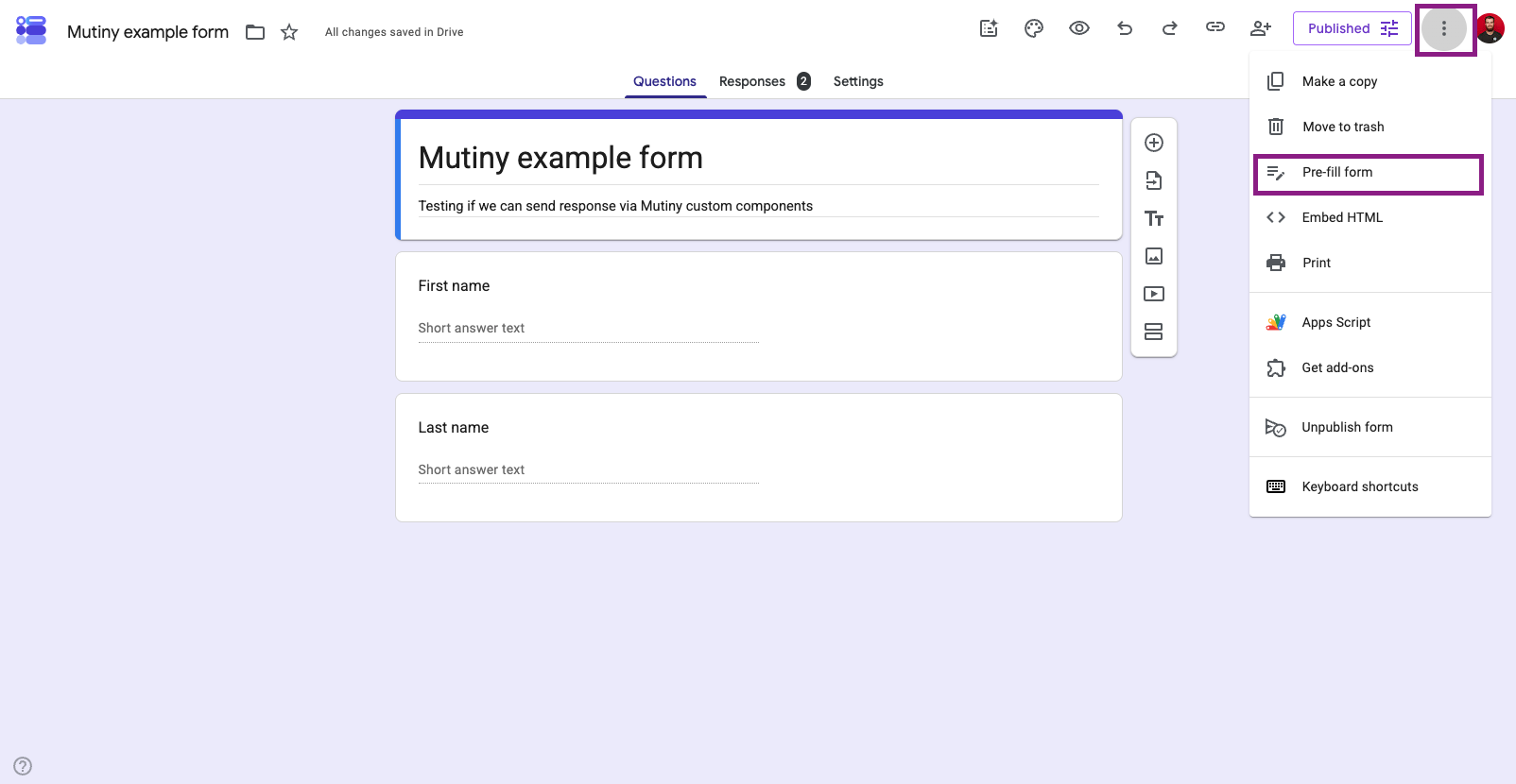
Once published, open the three-dot menu next to the Publish button in Google Forms and select Pre-fill form.
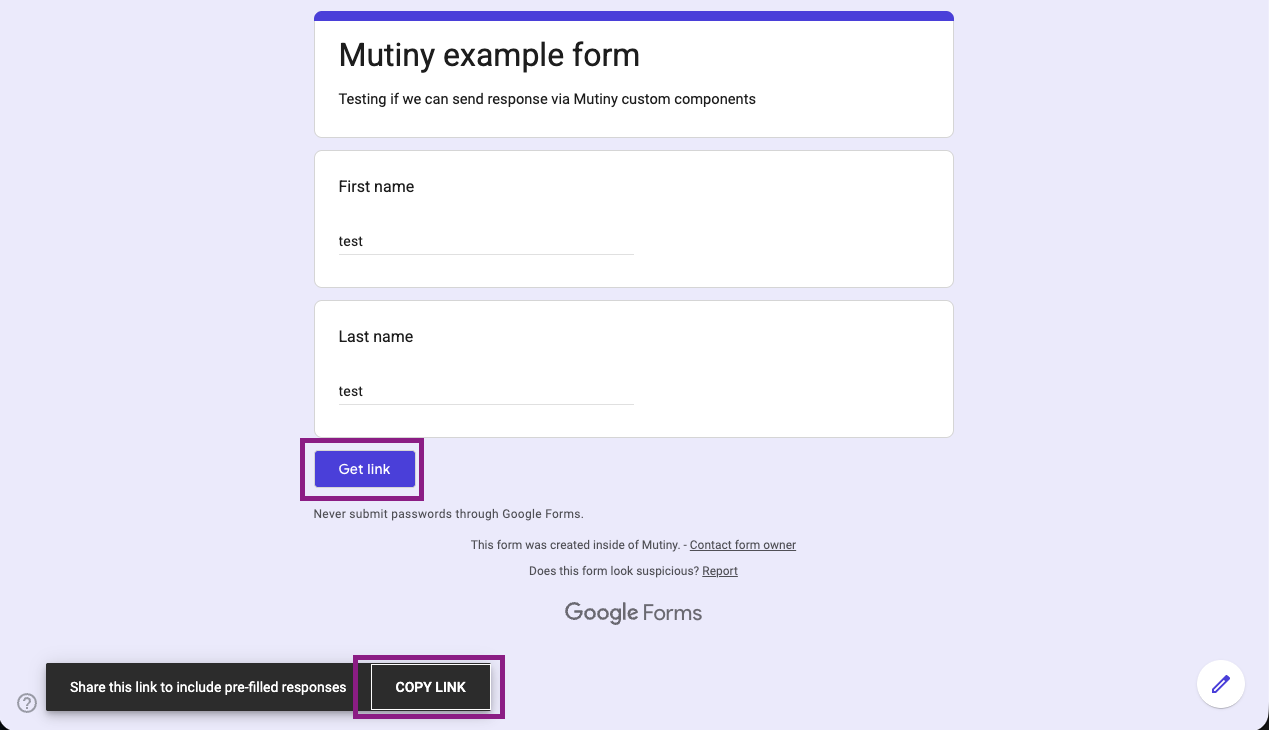
Fill out the form with dummy answers for each field, then click Get link. Copy this link. You will hand it off to the Mutiny Agent in the next step.
Creating Your Custom Form in Mutiny
With your pre-filled link copied, open the asset editor and ask the Agent to create a custom form that feeds into your Google Form. Paste the pre-filled link into your message.
Create a custom form that feeds into my google form, here is the prefilled google form link: yourPreFilledLinkHere
The Creative Agent uses the pre-filled link to map your custom form fields to the corresponding fields in your Google Form. Once it is done, your custom form is ready to use in Mutiny.
Seeing Your Responses
To confirm everything is connected, open the preview of your Mutiny asset and submit a test response through your custom form. Head back to Google Forms, and you will see the response appear in your submissions.
Need Help?
If you have questions or need help, the Mutiny Support team is here for you! You can submit a support ticket using the Submit a ticket button at the top of this page, or reach us at support@mutinyhq.com.