Creating Multiple 1:1 Assets
Last updated: June 25, 2026
Creating personalized assets for a list of target accounts is one of the fastest ways to scale your one-to-one outreach. With Mutiny, you can ask the agent to spin up a unique, personalized asset for each account in a single thread, review them all in one place, and publish them when you're ready.
Getting started
Start by creating a new thread from the home page, or open an existing thread you want to work in.
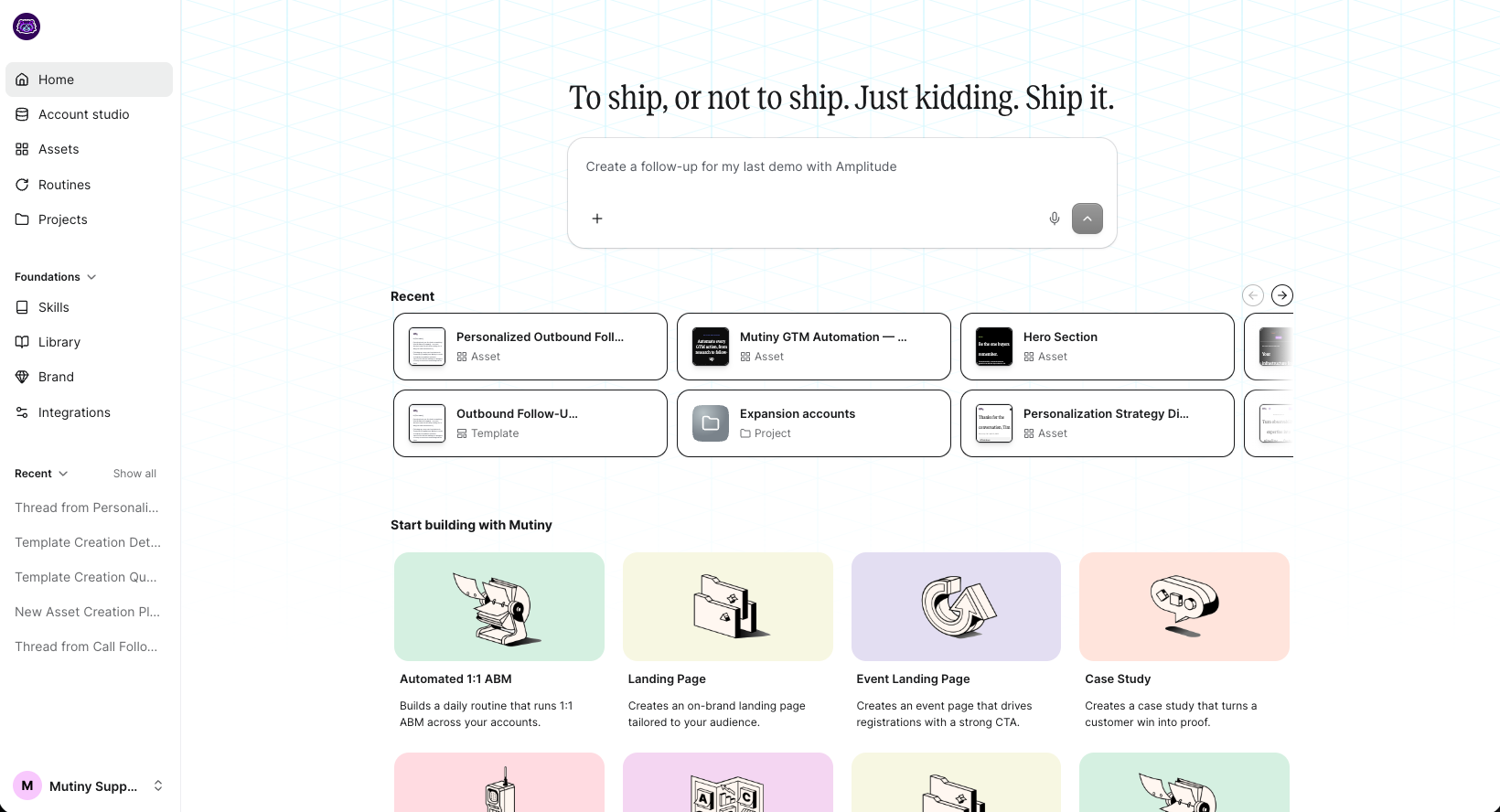
The key to a successful scaled one-to-one asset thread is giving the agent context about your target accounts. Make sure those accounts and their details live in one of your connected tools, or upload a spreadsheet directly into the prompt using the + icon
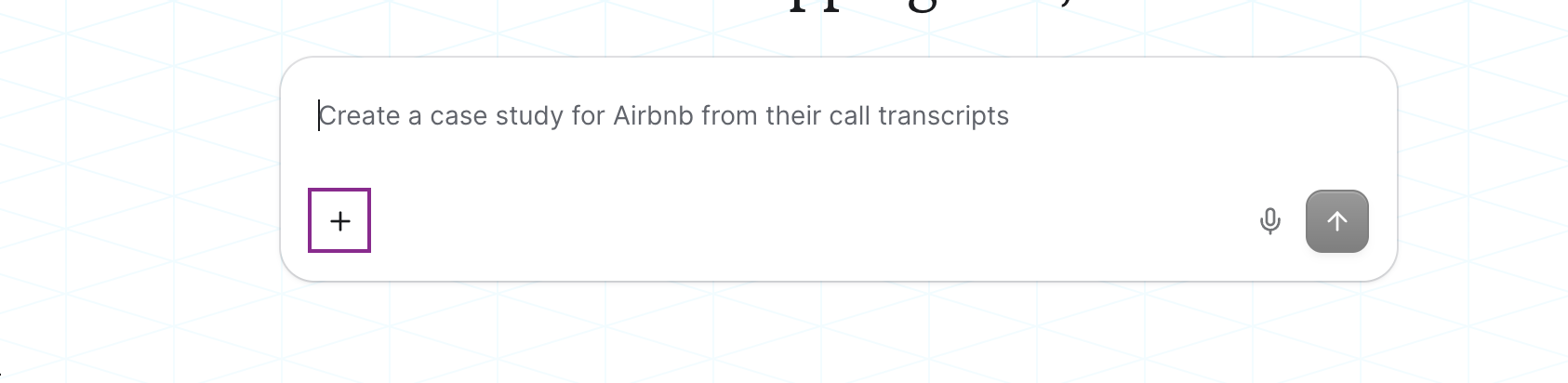
Creating personalized assets for each account
Once your account context is in the thread, ask the agent to create a one-to-one asset for each account and personalize it. You may be prompted to create a project for these assets, this is optional, but a good way to keep these assets and the thread organized - 📄 Projects Overview
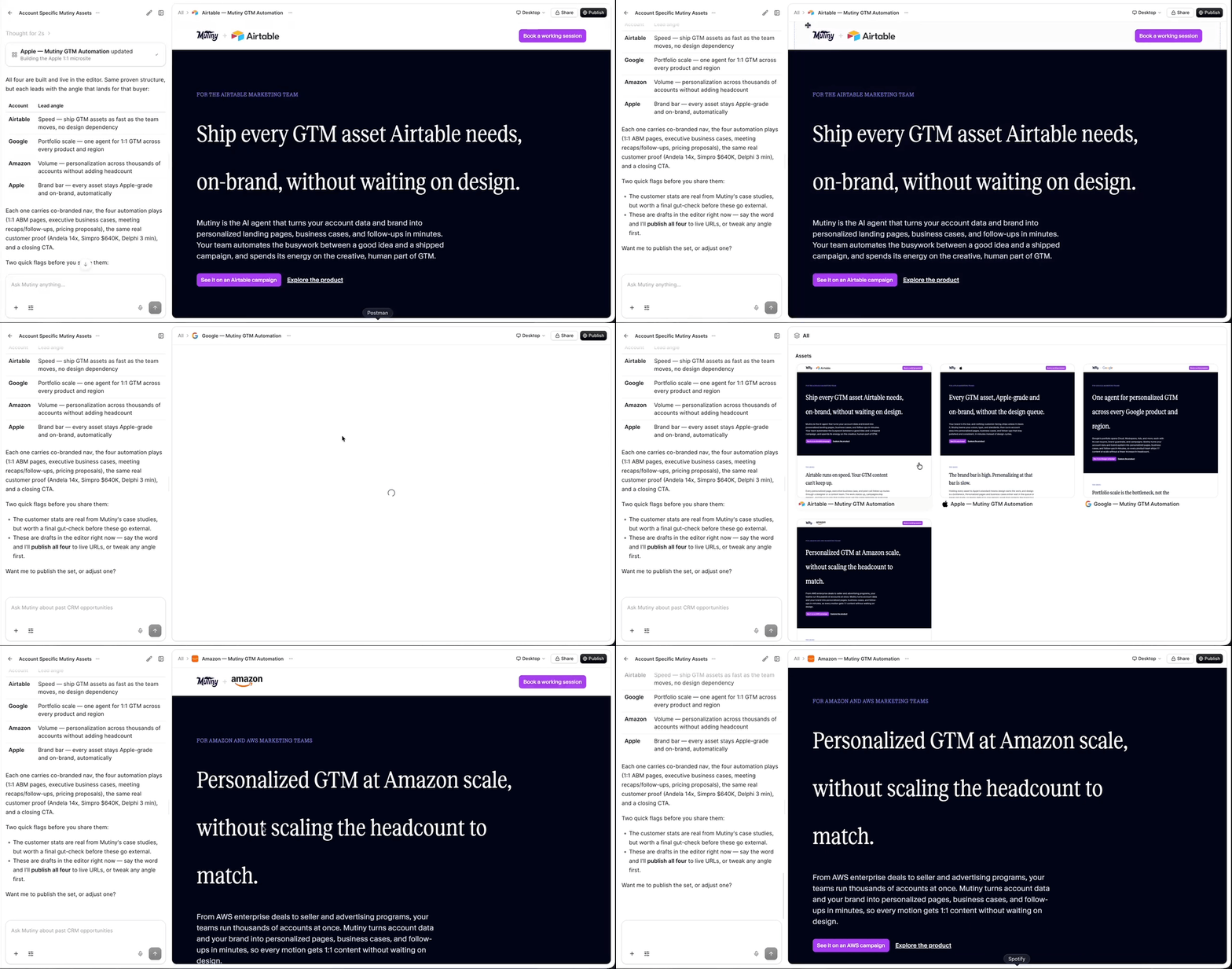
The agent will begin spinning up an asset for each account. All of these assets are viewable from the thread.
Reviewing and editing assets
Click through each asset the agent created to verify the copy and content. You can make manual changes to any asset using the editor.
Publishing your assets
When you're ready, you can publish each asset. Every asset gets its own unique URL once published. You have two options:
Ask the agent to publish all of them at once
Go through and publish them one by one
Making changes across all assets
You can use the agent to make changes across every asset at once. Say you have a thread with twenty assets. Instead of editing each one individually, you can ask the agent to update all of them in a single prompt.
For example, you can ask the agent to add a blog section to the bottom of each asset and select the most relevant blog from the library. The agent will create a blog section for each asset and make sure only the relevant blogs are added for each account.
Need Help?
If you have questions or need help, the Mutiny Support team is here for you! You can submit a support ticket using the Submit a ticket button at the top of this page, or reach us at support@mutinyhq.com.