Creating Scaled 1:1 Assets
Last updated: April 6, 2026
This is an enterprise-only feature. Interested in upgrading to an enterprise plan? Email the team at mutinylovesyou@mutinyhq.com to get plan upgrade information.
This article covers how to create scaled 1:1 assets using a target account list in Mutiny's Account Studio.
Setting Up Your Target Account List
Before creating a scaled 1:1 asset, you'll need an account list ready in Account Studio. If you haven't created one yet, head to Account Studio and set up your list.
For more info on creating and managing lists in Account Studio, check out the help doc below:

Creating an Asset
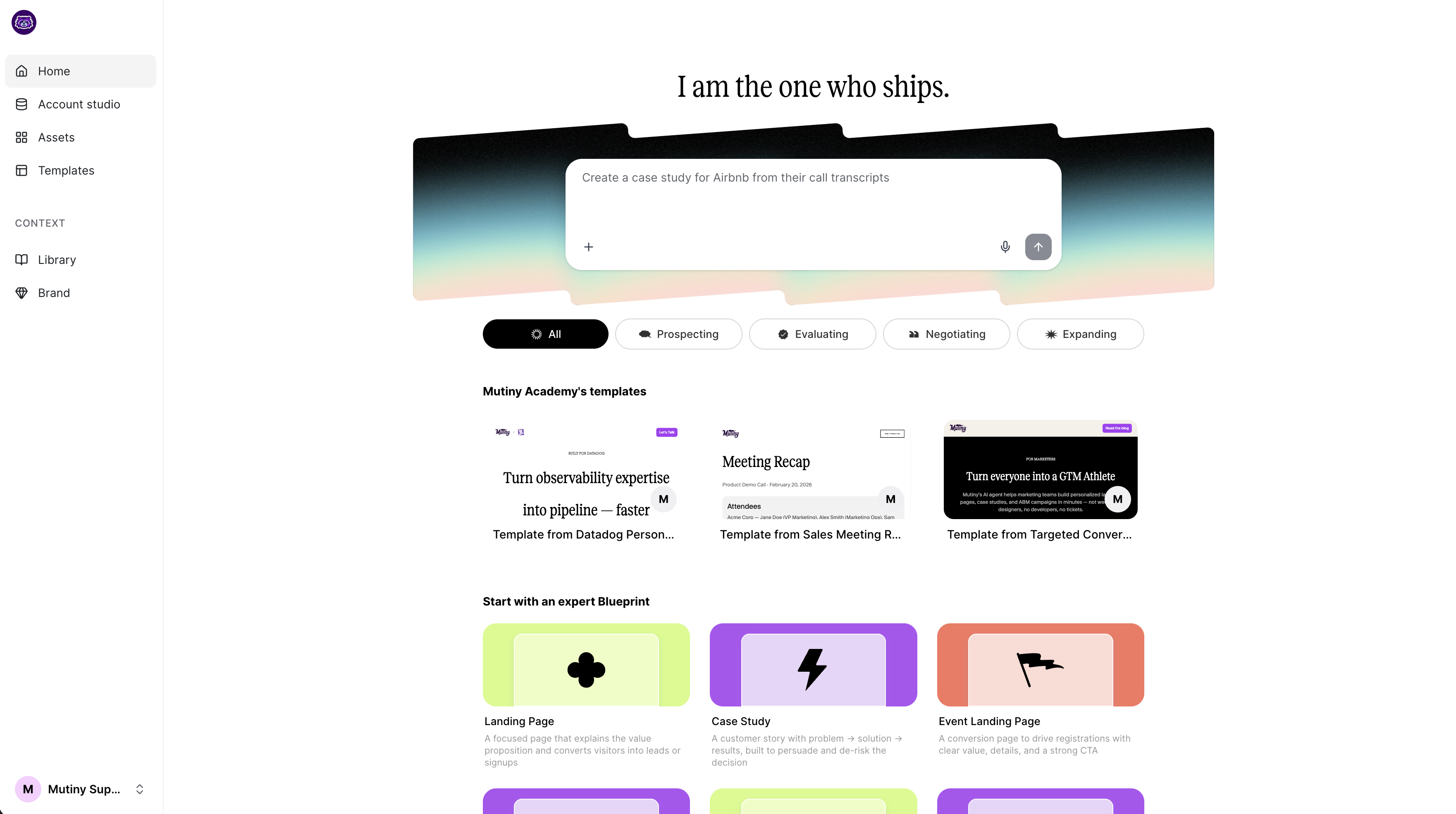
Once your list is ready, you can create a new asset in one of two ways. Navigate to the Home tab. Here, you can start from a blueprint, use an existing template, or prompt the Creative Agent to generate an asset from scratch.
Generating Pages for Your Account List
After building your asset in the editor, open the Pages tab and click the + button labeled Create Pages for Every Account in a List.

This will open a modal where you can select your account list. Choose the list and click Create Pages for this List to attach it to the asset.

Viewing List Data in the Editor
Once the list is attached, you'll be able to see which data is available by clicking the Data tab in the editor. You will also be able to show/hide columns using the Customize columns button, or add AI research by clicking Add AI Research

Personalizing Account Pages
Once a list is attached to your asset, you'll have access to the account data from that list directly in the editor. This includes fields like account name, account owner, and any AI research you have created, all of which can be used to personalize elements on the page.
All of this data will also be available to the agent.
Using the Agent to Apply Personalizations
You can apply personalizations using the agent through the Chat tab. The data from the list is available here as variables, so you can instruct the agent directly. The agent will reference your list data and apply the personalization to your asset pages automatically. Some example prompts include:
Add the account names to the hero section
Select relavent resources for each account based on the Account Priorities AI research
Using Variables in the Editor
To insert a variable, click into the element you want to personalize and type @ to bring up the list of available variables. For example, to add the account name to a hero header, type @account name and select it from the dropdown. The variable will now populate dynamically based on the account being viewed.

To apply a personalization to all accounts and pages, click Set as Default.

To preview how your personalizations look across different accounts, go to the Pages tab and click into the accounts you want to check:

Add or Remove Account Pages
To remove account pages from the scaled asset, head into Account Studio and select the list used in the asset.
Deleting accounts
With your list open, delete the desired accounts and then click Save changes -> Update list
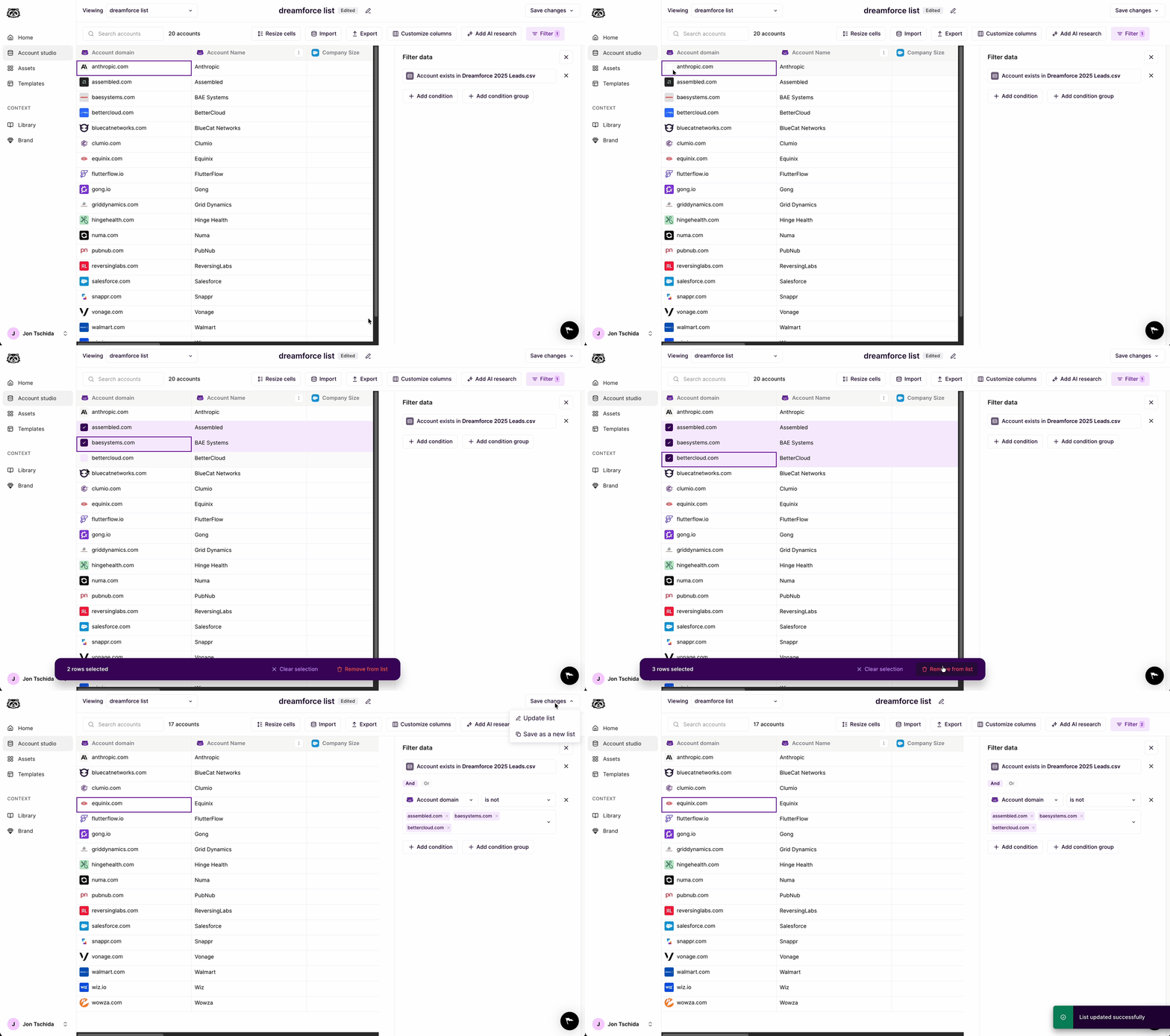
This will remove the account pages from the asset and make them inaccessible from the pages tab.
Adding accounts
With your list open, click the Import button, and upload your new accounts
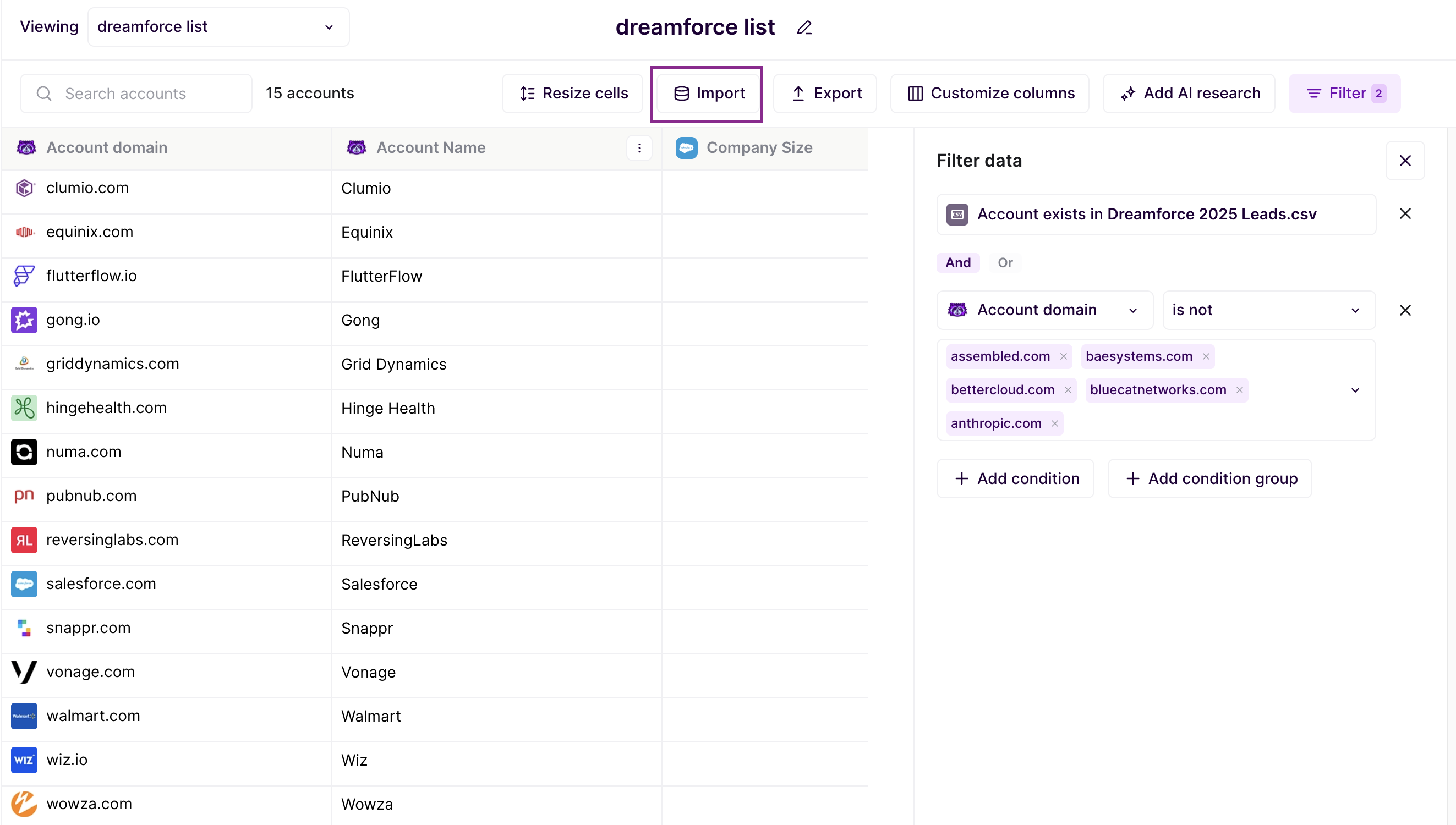
After they are imported, click Save Changes -> Update list - Once the list is updated, the new accounts will appear in the asset in the pages tab.
Need help?
If you have questions or need help, the Mutiny Support team is here for you! You can submit a support ticket using the Submit a ticket button at the top of this page, or reach us at support@mutinyhq.com.